

Prerequisites
Before you start, you will need the following information from Google Spanner.- Dialect
- Project ID
- Instance ID
- Database Name
- Credentials in JSON format
- Check this article to get your Project ID.
-
To get your Dialect, follow these steps:
- Open your Google Cloud Console.
- Go to your Spanner Database Overview page.
- Look at the Database info section on the screen.
- Check the Database dialect label and note the value.
- To get your Instance ID, check this article.
-
To get your Database Name, follow these steps:
- Navigate to your Google Cloud Spanner Instances page.
- Click on the name of the Instance ID you found in the previous step.
- On the instance details page, look at the Databases table at the bottom of the screen.
- Your database name is listed under the Database ID column (e.g.,
example-db,banking-db,production).
-
To create your Credentials JSON file, follow these steps:
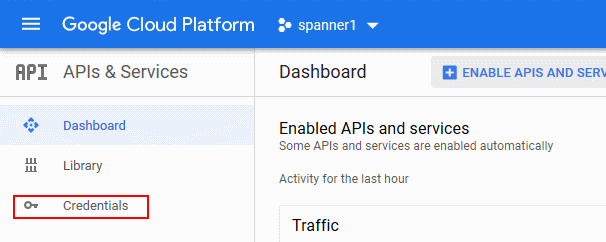
- Visit the APIs & Services page in the Google Cloud Platform Console and click Credentials.
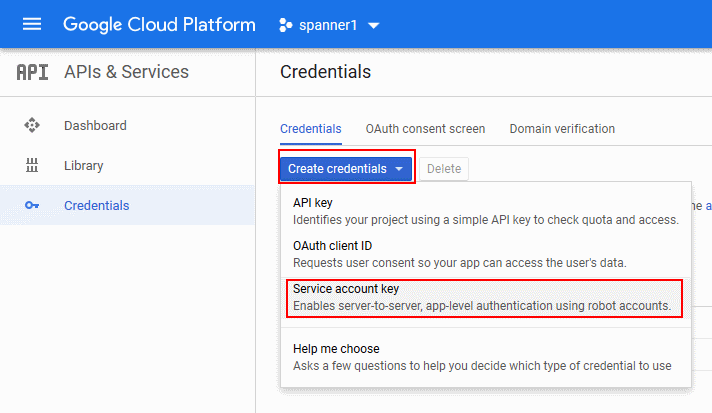
- Click Create credentials and choose Service account key.
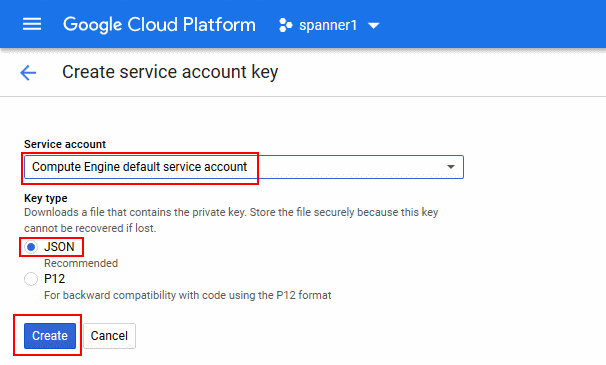
- Under Service account, choose Compute Engine default service account and leave JSON selected under Key type. Click Create. Your browser will download a JSON file.
Connecting Google Spanner to Peaka
Now that you have obtained the necessary integration data and credentials, you can connect Google Spanner to Peaka using the following steps:- Navigate to the data model page in Peaka.
- In the side menu bar, click the “New Data Source” button to initiate the connection process.
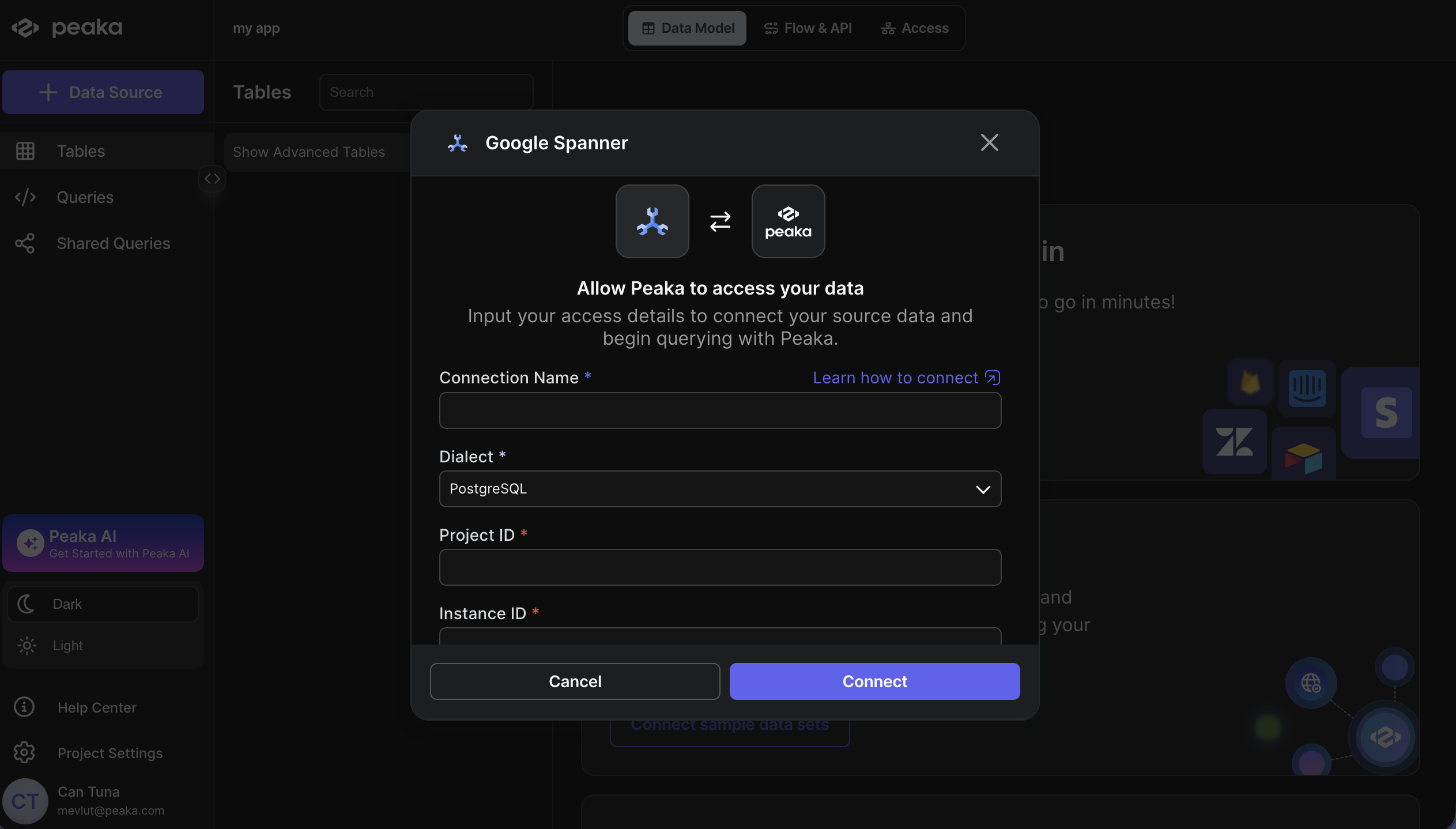
- In the modal that appears, select “Google Spanner” as your data source.
- Enter a name for your data source, fill in the Project ID, Instance ID, Database Name, and Dialect fields, then upload the credentials JSON file you downloaded in step 5.
- Click “Next” to create your Google Spanner data source.